SPRIG STUDIO
Batch promotion images for your candle shop
Your new scents deserve a consistent collection of images. Start with three candles, check every label, then export the sizes you need.
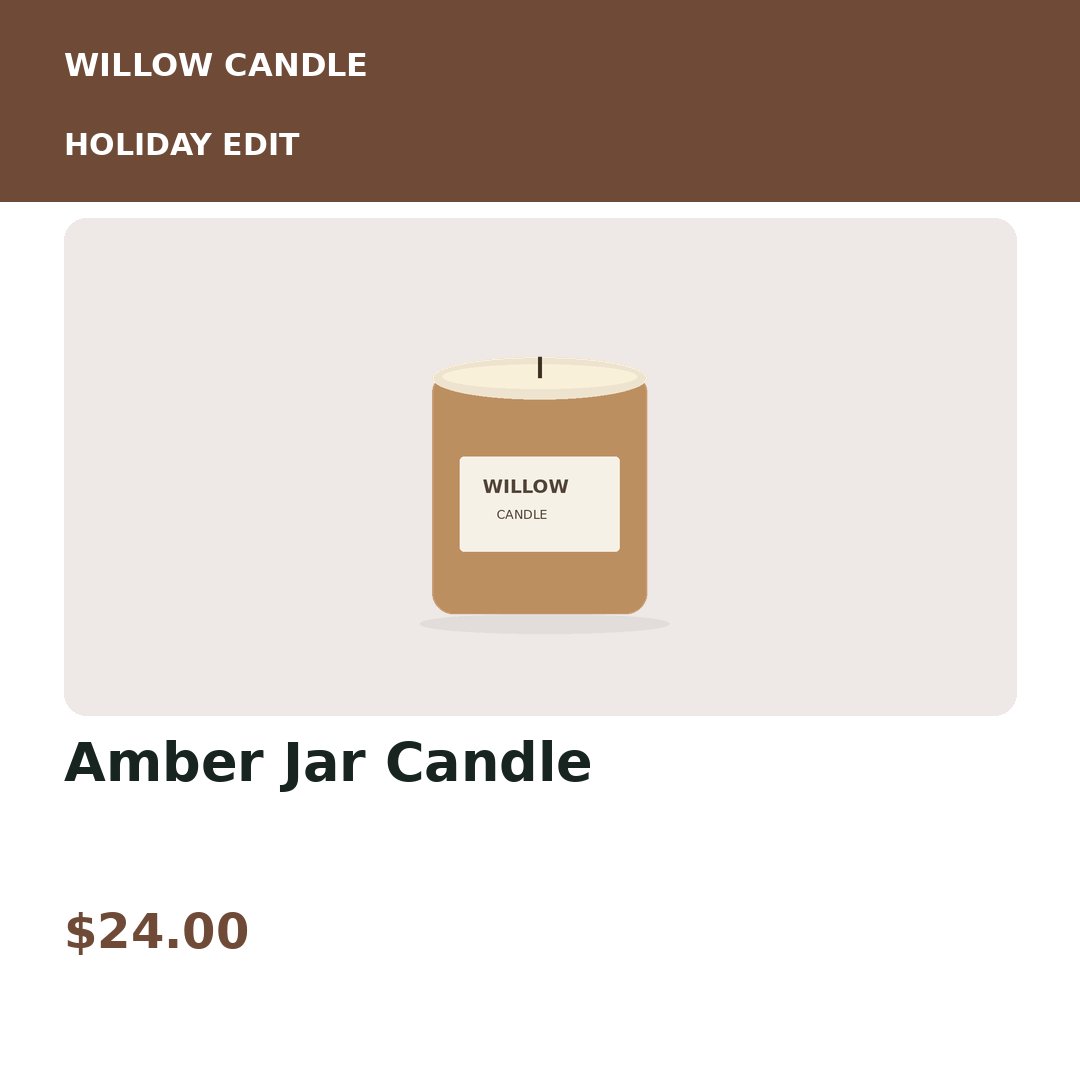
Fictional candle shop; original illustration and example price. No real merchant result or discount is represented.
Make scent, vessel and size unambiguous
Use a different SKU for each sellable variation. A useful title is “Amber candle — 8 oz jar”, provided that is accurate for your product. Keep the photo filename in its own column so a scent change never silently inherits another candle's image.
Prepare a holiday collection
Put your approved campaign label in the label column, such as “HOLIDAY EDIT”. Use a Promotion template for a strong offer heading or Editorial for a softer collection announcement. The original price field is optional; include it only when you intend to display an accurate comparison price.
Review the photos before the batch
Clear glass, pale wax and jar labels can be hard to see on a similar background. Preview against white and the tinted background. Sprig Studio fits the photo into the design; it does not invent scent notes, burn times or safety claims.
Update a scent without remaking the collection
Save the first campaign version. When a price or photo changes, import your new sheet, compare by SKU and select updates only. Review the selected products before generating another set.
Try this shop's example before signing up
Switch templates and sizes, inspect a sample price update, and download nine finished images. All three shops use the same renderer as the workspace.
Explore the candles example →Your first real export
A free account includes 9 successful image exports: 3 products × 3 sizes. You can preview without spending credits. Download your source and finished files promptly; uploaded files and exports are kept for up to 24 hours.
Detailed spreadsheet preparation → · How campaign comparisons work →